Which Mac dictation apps keep your audio on the Mac
Seven apps, read against each vendor’s own privacy policy or docs on 2026-10-13, plus a test you can run yourself.
Mac dictation apps that work without sending your audio to the cloud, by default: MacWhisper, VoiceInk, Superwhisper with a local model, Voice Type, and Apple Dictation on an Apple silicon Mac in a supported language. Wispr Flow and Typeless send audio to their servers every time; neither documents a local mode.
Most local apps can also send audio or text to a cloud provider once you add a key or pick a cloud model. The table lists both, in each vendor’s own words, checked 2026-10-13.
App by app
Whether each Mac dictation app sends audio off the Mac, by default and as an option. Checked 2026-10-13.
App
Audio by default
Optional paths off the Mac
The vendor’s own words
Apple Dictation
Depends on the Mac and the language. On Apple silicon, in a language Apple lists for on-device dictation, general text stays on the Mac. On an Intel Mac or in other languages, audio goes to Apple.
Audio is stored by Apple only if you turn on Improve Siri and Dictation. Dictating into a search box can send the text to the search provider.
Stays on the Mac. There is no code path that uploads audio.
Optional text rewrite, off by default, sends the finished transcript text to the provider you pick. Never audio.
Checked in the app’s Swift source. Details below.
Apple Dictation: on the Mac, sometimes
Apple’s macOS 14 guide gives the rule. On a Mac with Apple silicon, “Dictation requests are processed on your device for supported languages” and “no internet connection is required.” On an Intel Mac, or in a language without on-device support, “your dictated utterances are sent to Apple.” Dictating into a search box may send the text to the search provider.
The supported list is on Apple’s macOS Feature Availability page under On-Device and Modeless Dictation. It includes English for the US, UK, Canada, Australia and India, and carries a note that it “requires download of speech models.” The current macOS guide no longer spells the rule out; it tells you to read the text under Dictation in Keyboard settings, which says whether your dictation is processed on the Mac or sent to Siri servers.
When audio does go to Apple, Apple’s privacy notice says it is not stored unless you opt in to Improve Siri and Dictation. The request history, including transcripts, is tied to “a random, device-generated identifier that rotates multiple times per hour” and Apple “may retain and use this data for up to two years.” Apple Dictation is free. If your Mac and language qualify, it is the local option you already have.
What a cloud app uploads
Thirty minutes of dictation is this much audio on the wire, depending on the codec the app uses:
5.25 MB as Opus at 24 kbit/s.
16.4 MB as AAC at 64 kbit/s.
57.6 MB as 16 kHz WAV, the input format Whisper-family models take.
At a 1 Mbit/s uplink that is 41 seconds of upload as Opus and 4.6 minutes as WAV. A local app uploads zero bytes. The WAV figure is exact arithmetic; the Opus and AAC sizes were measured on synthetic speech and will run somewhat larger on a real voice. We do not know which codec each vendor uses, so read these as a range, not a figure for any one app. Script and raw samples are on the measurements page (bench/payloadsize.py).
Check any app yourself
Turn off Wi-Fi and dictate. If text still appears, the recognition ran on the Mac. This proves the app can work offline. It does not prove the app never uploads, because an app can work offline and still send audio when the network is back.
Watch the app’s traffic while you speak. In Terminal, run nettop -P -p "Voice Type" (use the app’s process name, as shown in Activity Monitor). It lists that process’s bytes in and out. Dictate for a minute. A cloud app’s bytes out climb with every sentence; a local app’s stay flat.
Use a per-app firewall. Little Snitch or LuLu shows every connection an app opens and the host it goes to. Deny everything for the dictation app and see whether it keeps working.
For Apple Dictation, open System Settings, then Keyboard, and read the text under Dictation. Apple says it states there whether your dictation is processed on the Mac or sent to Siri servers.
Voice Type: everything that leaves the Mac
Recognition runs on the Mac with whisper.cpp. Audio is never sent anywhere; the app has no code that uploads it. This was checked in the shipping Swift source, which makes exactly these network calls:
Model download, once. The speech model is fetched from huggingface.co when you first set up the app or switch models. The app refuses any other host for model files (ModelArtifactManifest.swift). After that, recognition needs no network.
A static file, every six hours. A plain GET to files.carelesswhisper.app/review-gate.json, which we host. The request has no body and no identifier beyond the default macOS user agent; the response is a build number and a version field (Defaults.swift). Run curl -s https://files.carelesswhisper.app/review-gate.json to see all of it.
App Store purchase checks. Handled by Apple’s StoreKit, between your Mac and Apple.
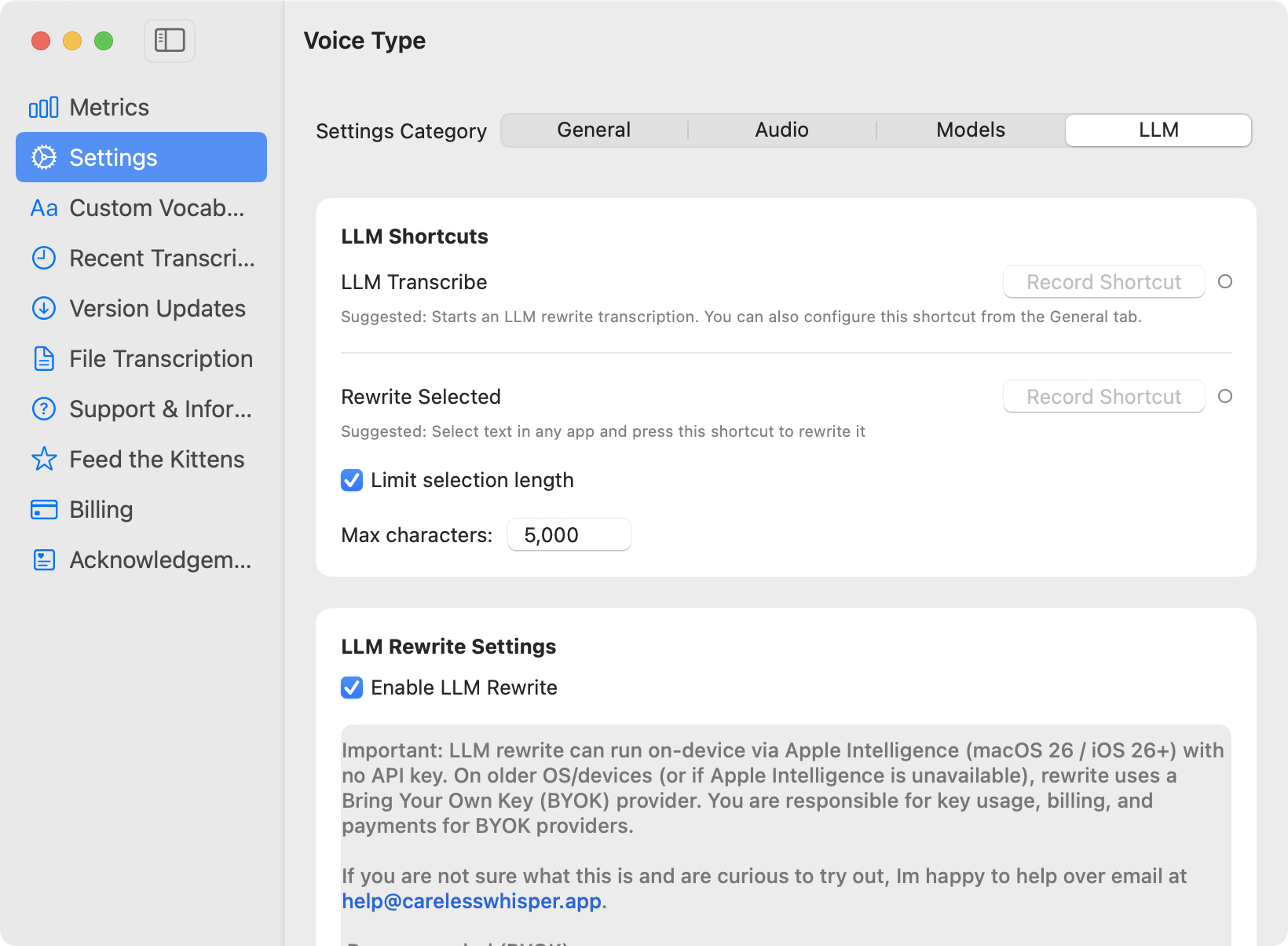
Optional text rewrite, off by default. If you turn on LLM rewrite (llmRewriteEnabled = false in WhisperState.swift) and pick a cloud provider with your own key, the app sends that provider your rewrite prompt, the model name and the transcript text (LLMRewriter.swift). The Rewrite Selected shortcut sends the text you selected instead, capped at 50,000 characters by default. The request goes straight from your Mac to the provider. Apple On-Device (macOS 26), Ollama and a local script keep the rewrite on the Mac, though a script you write can call anything.
And these are absent:
No analytics or crash-reporting SDK. The onboarding funnel is written to local preferences and never sent.
No Voice Type server that receives audio or text. There is nothing on our side to store, review or train on.
Live Captions on macOS 26 uses Apple’s SpeechAnalyzer framework with a speech model macOS installs on the Mac. It is a separate feature from hotkey dictation.
Enable LLM Rewrite ships off. With a cloud provider selected, transcript text goes from the Mac to that provider directly. Unretouched screenshot.
Where on-device loses
Where Voice Type loses
Cloud recognition can run models far larger than a laptop holds. We have not measured word error rate for Voice Type or any other app here, so this page makes no accuracy claim in either direction. A local app also costs disk space and memory for the model, and the first run needs a download. If your audio is not sensitive and the best possible transcript matters more than where it is processed, a cloud app may serve you better. If you are on an Apple silicon Mac in a supported language, free Apple Dictation already keeps general text on the Mac.
Voice Type is on-device dictation for macOS. Press a shortcut, speak, and the text goes into the app you are typing in. Your audio never leaves your Mac. Free for 7 days, then $19.99 once on the Mac App Store. No subscription and no account.